Kinetic Typography Part 1
1. What Is Kinetic Typography?
Kinetic typography is a visual art form that combines typography—the art of arranging text—with kinetic elements, or movement. Its history dates back to the late 19th century, the dawn of cinema, when Georges Méliès created examples of this art form using various film techniques such as stop-motion and slow-motion photography.
(Reference) https://kinetictypography.dreshfield.com
Although we won’t cover it here, motion graphics is a similar form of expression. In recent years, kinetic typography and motion graphics have become so ubiquitous—appearing in TV, movies, web ads, and the animations of various app UIs—that hardly a day goes by without seeing them.
An example of lines from the movie V for Vendetta rendered using kinetic typography.
The opening title sequence for the film Se7en (1995) by Kyle Cooper. It was created using film photography. It generated a great deal of buzz at the time, and many imitations of this technique were produced. Various techniques were employed in the typography design, such as misalignment and smudges, creating a stylish aesthetic through the interplay of tension and release. At that time, digital typography had not yet emerged.
3. Tools for Creating Kinetic Typography
While computer-generated visuals have become the norm in recent years, it is still possible to create them through creative cinematography, as demonstrated by Kyle Cooper.
- Adobe Premiere
- Adobe After Effects (with dedicated plugins such as AE Juice and Newron)
- Adobe Animate (the successor to Flash)
- Apple Motion
- TouchDesigner
- AVIUTL (see: YouTube - Simple Kinetic Typography)
- Swish (no longer available) *Software that was popular during the heyday of Flash
- Various VJ software
- Various 3D CG software
Around 2000, with the emergence of Flash as a software-based production environment, a wide range of creative expressions emerged, encompassing not only kinetic typography but also motion graphics. At the time, while the bitmap-based After Effects required significant time for preview rendering, the vector-based Flash allowed for real-time previews.Furthermore, even before online video streaming services existed (YouTube launched in 2005), the ability to publish works on the web led to its explosive growth. Today, it has been replaced by HTML5—a technology that serves as a Flash alternative—and video streaming services.
4. Goals for This Session
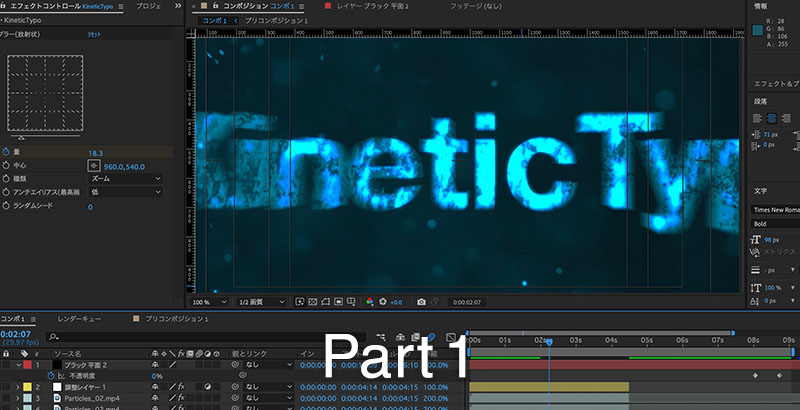
I will use After Effects to create kinetic typography like the example below.
5. Preparing the Materials
5.1 Preparing Audio Data
Go to the Boom Library website at the URL below and create an account.
https://www.boomlibrary.com/

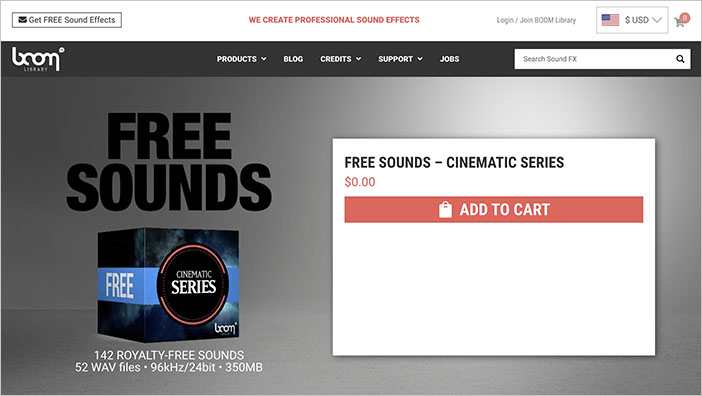
Purchase and download the “FREE SOUNDS - CINEMATIC SERIES” (free) from the page below.
https://www.boomlibrary.com/sound-effects/free-sounds-cinematic-series/
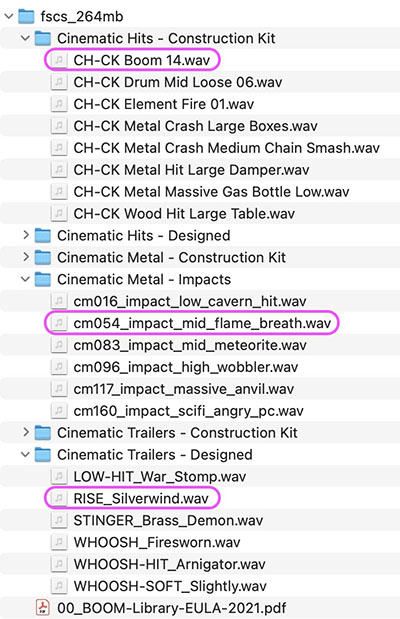
Download and unzip fscs_268mb.zip, then prepare the following three files.
- CH-DS HIT Boom 04.wav
- cm054_impact_mid_flame_breath.wav
- RISE_Silverwind.wav
5.2 Preparing Video Data
Use the particle footage available on Video Copilot.
https://www.videocopilot.net/blog/2011/09/free-particle-stock-footage-tutorial/
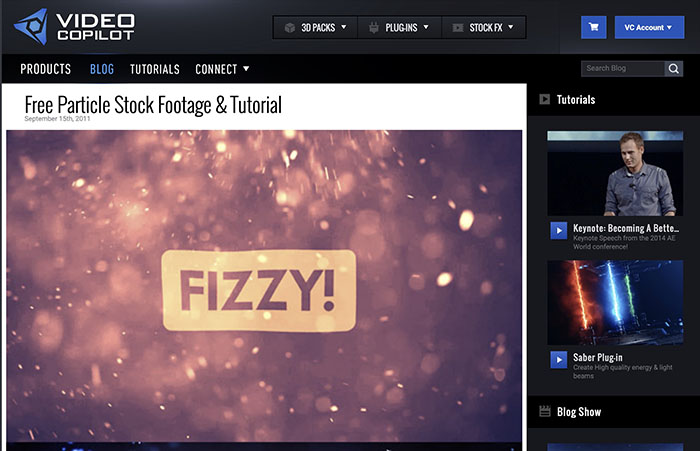
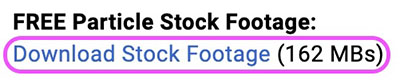
At the bottom of the page above, you will find a download link (see image below); click it to download the file.
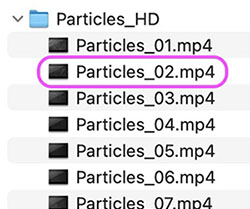
Unzip the Particles_HD.zip file. It contains 15 videos, but in this example, we are using Particles_02.mp4. You can choose which file to use.

5.3 Preparing Texture Images
Use the tutorial data available on the Video Copilot website.
https://www.videocopilot.net/tutorials/damage_and_decay_fx/
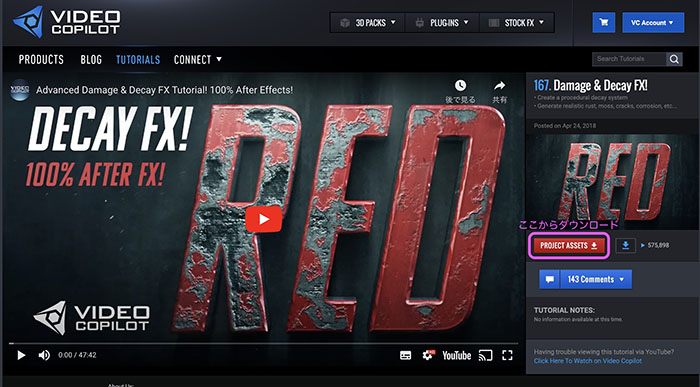
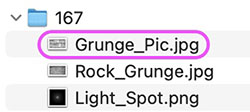
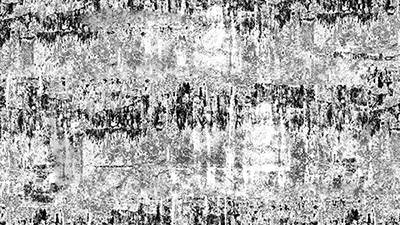
Unzip the 167.zip file. Of the three files, use Grunge_Pic.jpg.
5.4 Preparing Logo Data
Prepare the logos for the Department of Industrial Art and Tokyo Metropolitan University. Explain them during class.

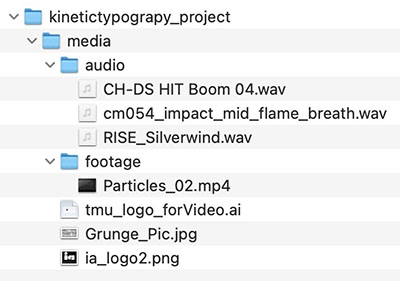
6. Organizing Media Files
*We will distribute the data we have compiled in advance.
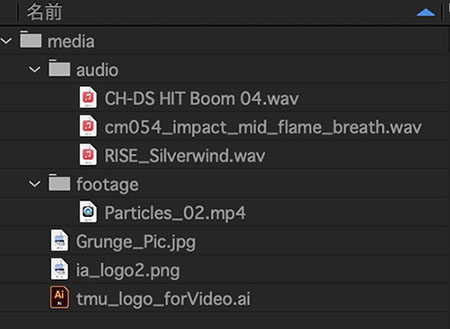
Organize your media files into a folder structure as shown below.
7. Preparing the After Effects Project
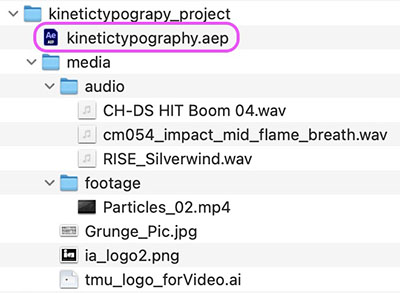
7.1 Saving a Project
Save the project file in the root of the folder created in step 6 (kinetictypography_project).
7.2 Loading Media Files
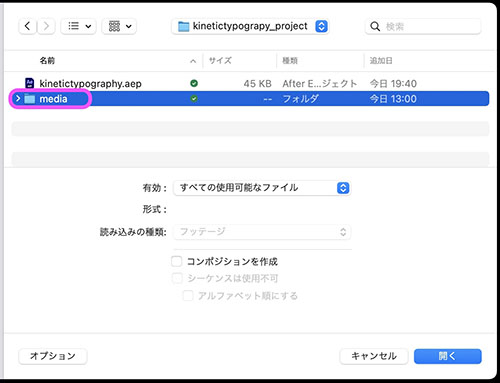
If you specify a folder to load, the entire folder structure will be loaded.
Just as when loading a single file, click File Menu > Load > File.
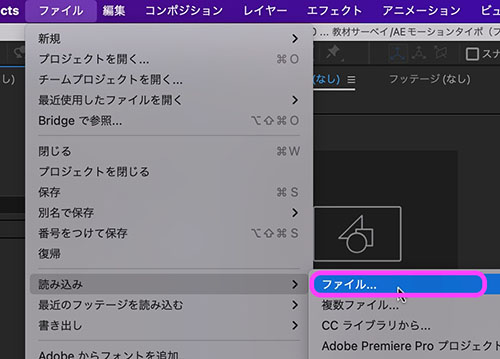
Select a folder instead of a file, then click “Open” in the lower-right corner.
Media is loaded into the project panel organized into folders.
7.3 Creating a New Composition
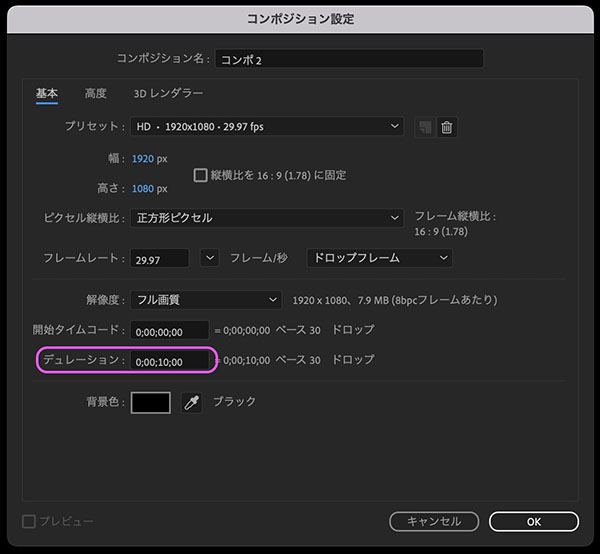
Create a composition using the following settings.
- Preset: HD, 1920x1080, 29.97 fps
- Duration: 10 seconds