Deepmotion Animate 3D
1. What is Deepmotion Animate 3D?
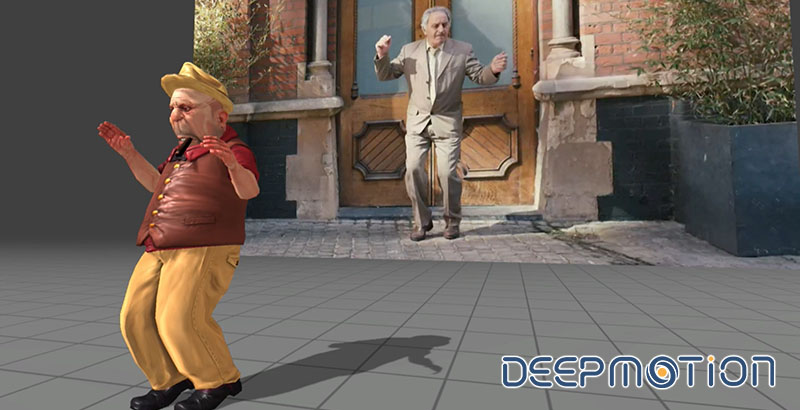
Animate 3D is a cloud service developed by Deepmotion. Users can upload video data, and the service automatically generates 3D motion using AI technology, which can then be downloaded in FBX or BVH formats.It can analyze motion from video footage alone, without requiring motion capture equipment or suits. Because Animate 3D is so well-known, Deepmotion is sometimes introduced as if it were synonymous with Animate 3D, but Deepmotion is strictly the name of the development company. Deepmotion also offers other products, including RealTime Body Tracking, Virtual Reality Tracking, and Motion Brain.
2. Similar Applications
2.1 Plask
A service that analyzes motion from video data, similar to Deepmotion. It allows you to record, analyze, and edit videos directly within the web interface. While Deepmotion’s UI can be confusing, Plask’s is sleek and user-friendly. Although I haven’t verified the quality of the motion analysis, during testing, Plask seemed to have a lower frame rate.
2.2 CEB Easymocap Monocular
A Blender add-on for extracting motion from videos. For Windows only.
3. Types of Animate 3D Licenses
https://www.deepmotion.com/pricing
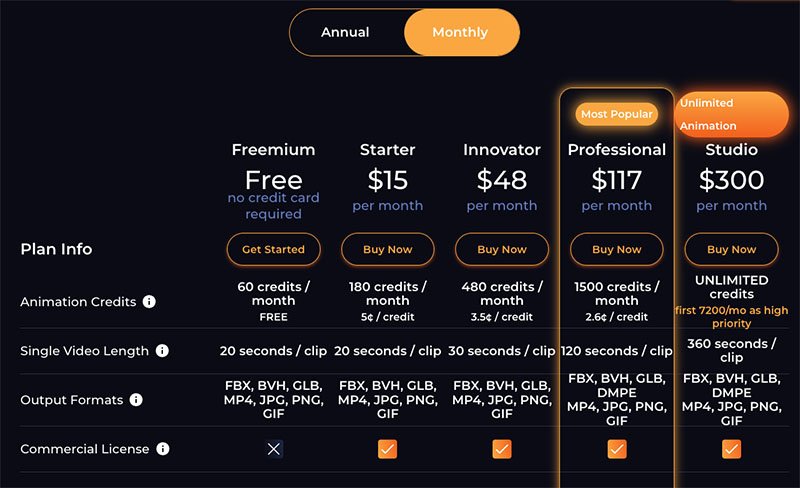
There are five license options available. Each requires a certain number of credits based on monthly processing volume. The cost varies depending on the type of processing—for example, 10 seconds of HD video costs 10 credits, while a single pose image costs 1 credit. With the Freemium plan, you can only process six 10-second HD video clips per month, so you won’t be able to process very much.
4. SIGN UP
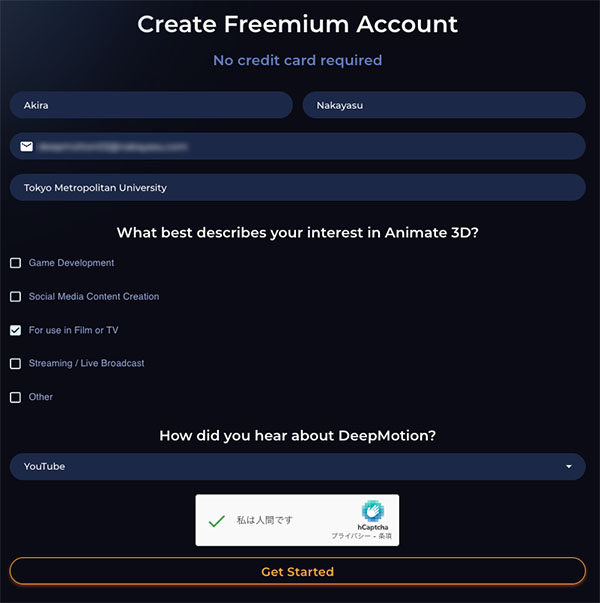
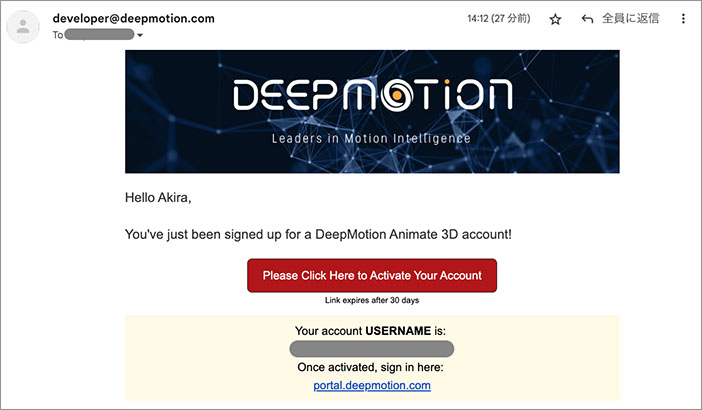
Only Animate 3D can be licensed online. For other software, such as Real-Time Body Tracking, please contact us. Register as a user by clicking “SIGN UP” in the upper-right corner of the Deepmotion website.

Enter the required information and click “Get Started.”
Click the email button.
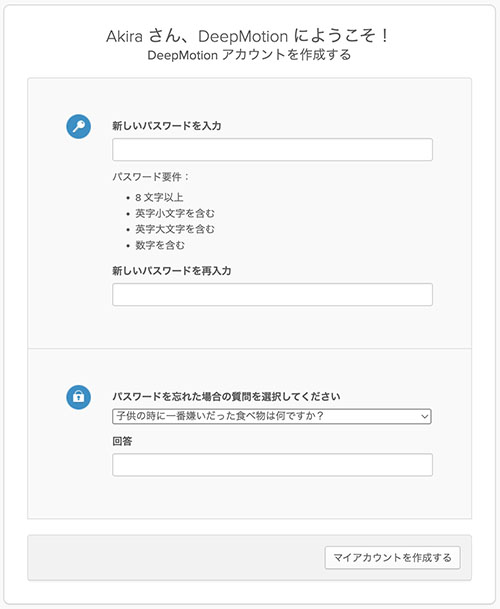
Enter your password and security questions, and you’re all set.
5. Workshop Flow
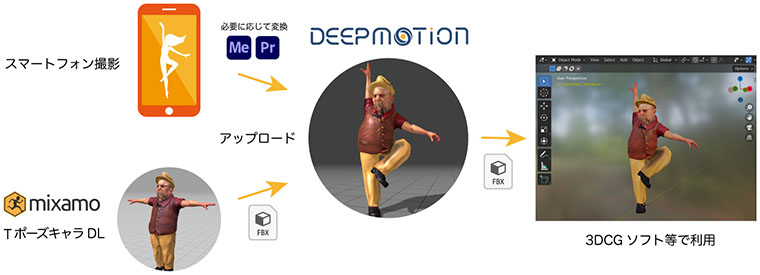
In this exercise, we will cover everything from shooting with a smartphone and using Mixamo characters to analyzing the footage in Deepmotion Animate 3D and reviewing the results in Blender.
6. Smartphone Photography
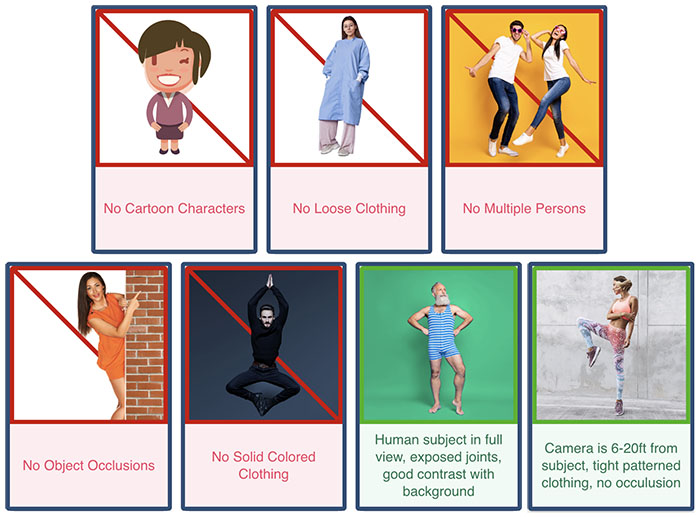
The Freemium license is limited to Full HD (maximum width of 1920px and maximum height of 1080px) and videos of 10 seconds or less. Supported file formats are limited to MP4, MOV, and AVI. Additionally, to ensure accurate motion analysis, you must follow the rules below when recording.
- No Cartoon Characters: Animated footage is not allowed (though poses that took time to render were acceptable)
- No Loose Clothing: Clothing that makes it easy to analyze the body’s skeletal structure; baggy clothing is not allowed
- No Multiple Persons: Only one person
- No Object Occlusions: No part of the body should be hidden by objects
- No Solid-Colored Clothing: The entire body should not be the same color; it is preferable for the arms and legs to be exposed
- Human subject in full view…: The entire body must be within the frame
- Good contrast with background: There must be high contrast between the background and the body
- Camera is 6-20ft from subject: The distance between the camera and the body should be approximately 2–6 meters
As long as the blur isn’t too severe, you can handle it even when shooting handheld. Generally, using a tripod is recommended. Even if there was some movement from plants outdoors, the images were usable as long as the subject was easily identifiable.
7. Download Mixamo Character Data (FBX)
For instructions on how to use Mixamo, see the URL below: https://lecture.nakayasu.com/mixamo
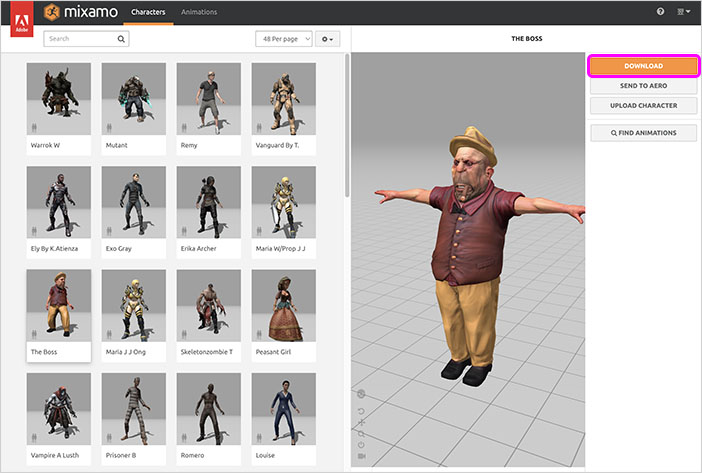
Select your preferred character and click the DOWNLOAD button on the right. Make sure to deselect “Animation” and set the character to the T-pose. Animate 3D can only import T-poses.
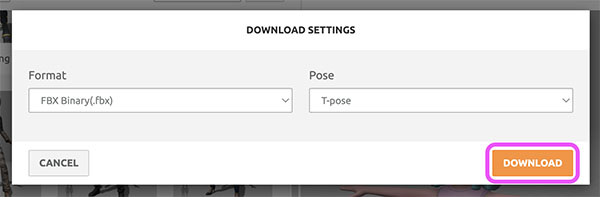
Format: FBX Binary, Pose: T-pose. Click the DOWNLOAD button.

8. Analysis in Deepmotion Animate 3D
8.1 Limitations of the Freemium License
With the Freemium license, there is a limit of 30 credits per month, so you can only process three 10-second HD clips. The “Reruns” feature, which allows you to modify only the characters in animations that have already been analyzed, is also available only with a paid license or higher.
8.2 Dashboard
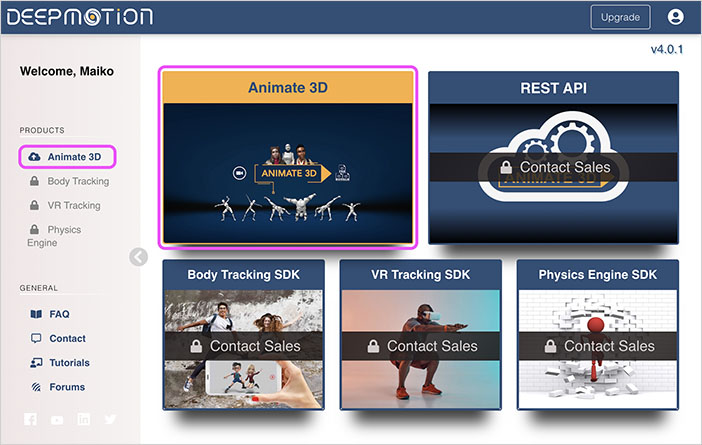
After signing in, the Dashboard shown below will appear. Click either the left menu or “Animate 3D” on the right. All features except Animate 3D are locked because they require a paid subscription.
8.3 How to Proceed According to the Animation Guide (Not Used in This Case)
There are two methods available for performing the analysis. Click “Get Started” to display a guide that will walk you through the process step by step.
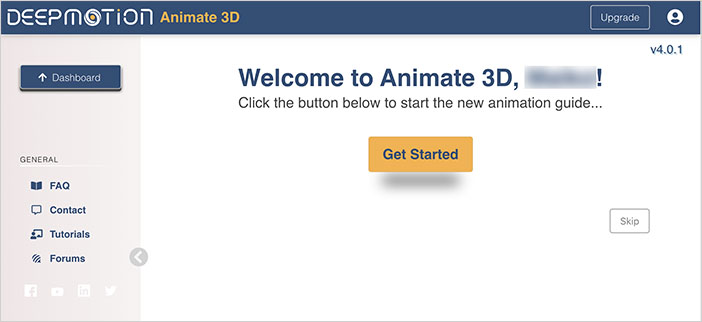
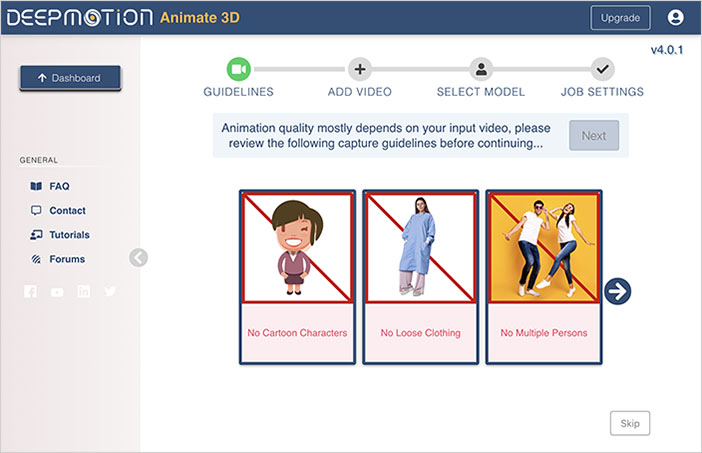
Since you need to upload a Mixamo character this time, click “Skip” in the lower-right corner.
8.4 Uploading Mixamo FBX Files to 3D Models
Click “3D Models” in the left menu or “View Characters” under “3D Models” in the lower center.
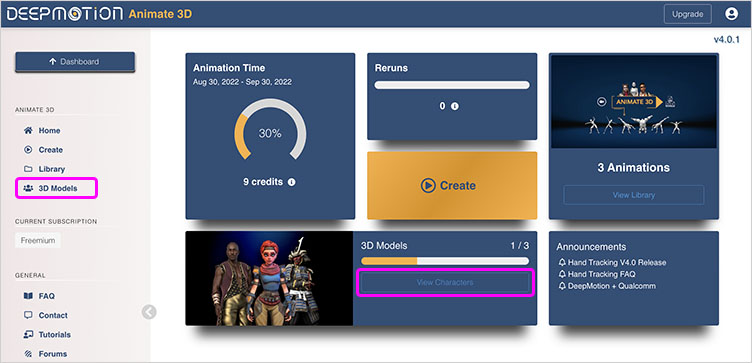
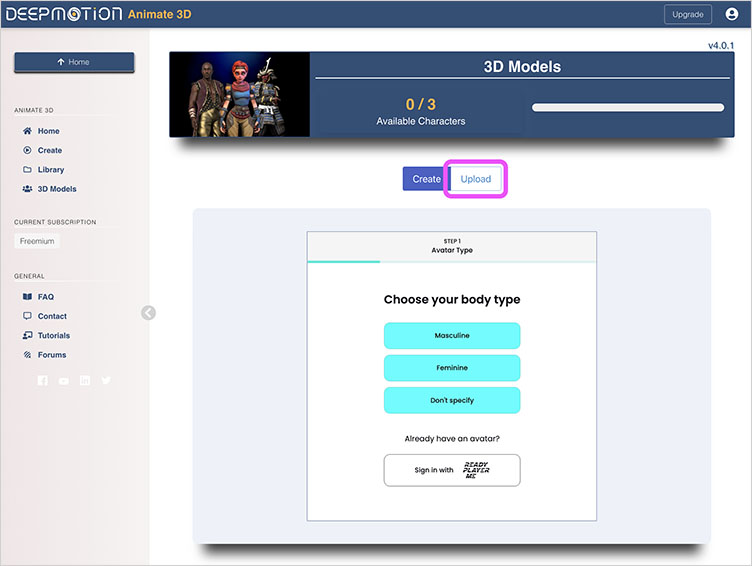
Click “Upload” in the image below. We won’t be using “Create (Ready Player Me)” this time.
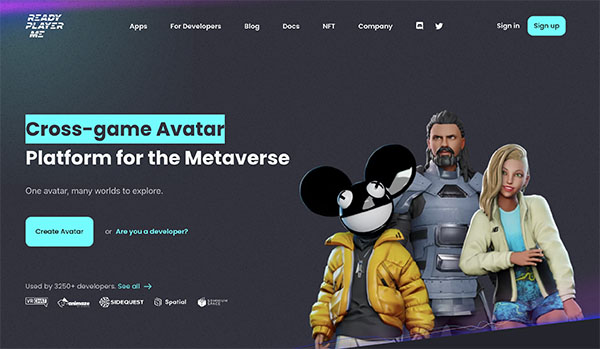
(Reference) Ready Player Me
In the “Create” section of 3D Models, you can create avatars by integrating with Ready Player Me, a cross-game avatar creation tool. You can also import avatars that have already been created on the Ready Player Me website.
Next, drag and drop the FBX file you downloaded from Mixamo onto the “Drag and drop 3D model” shown below.
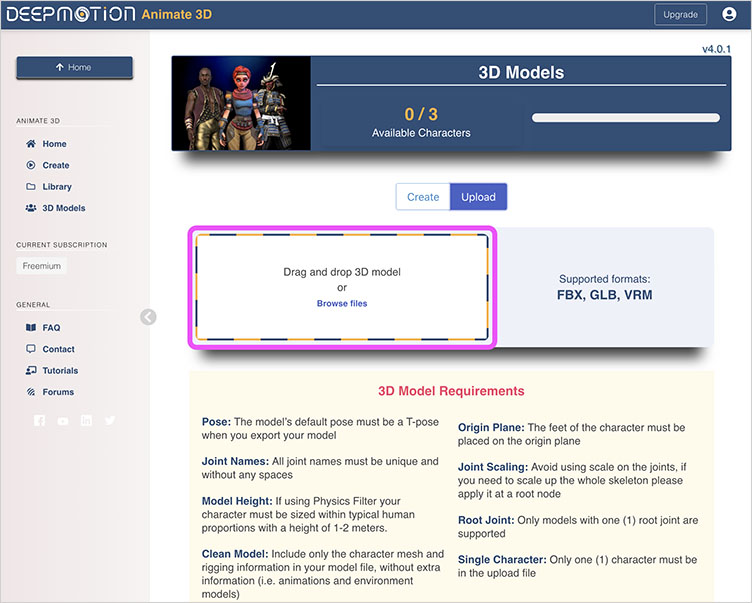
When the screen below appears, click the Upload button.

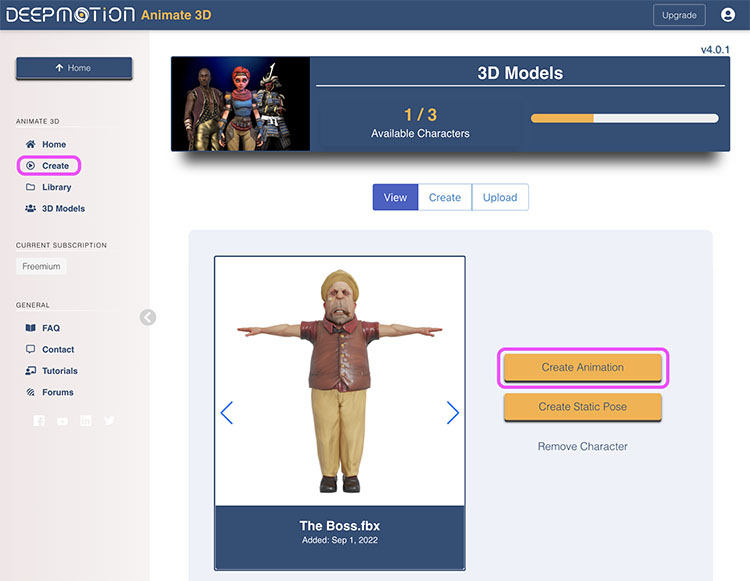
Once the character has been registered, the screen shown below will appear. Click “Create Animation” or “Create” in the left menu.
8.5 Uploading Smartphone Videos
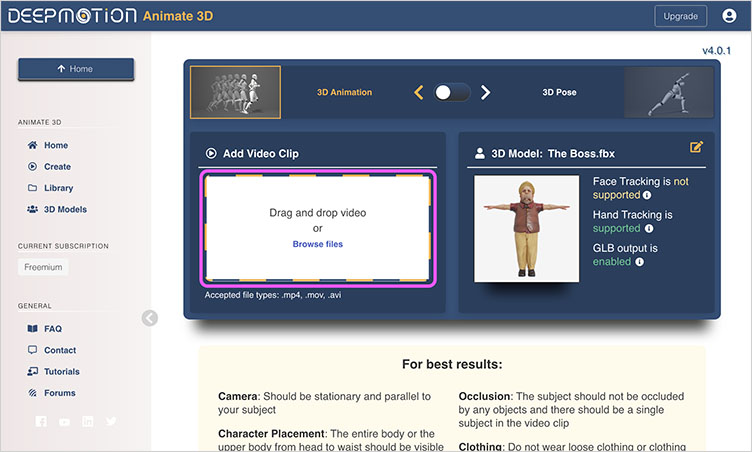
Drag and drop the video you shot on your smartphone into the “Drag and Drop Video” section of Add Video Clip. With the Freemium license, there are restrictions: videos must be in Full HD (maximum 1920px wide by 1080px tall) and no longer than 10 seconds. Supported file formats are limited to MP4, MOV, and AVI. If your video does not meet these requirements, adjust it using Media Encoder, Premiere, or a similar tool before uploading.
8.6 Animation Analysis
Switch to the Video Output tab. Make sure FBX Output is turned on. Click the Create button.
In the “Animation Output” settings, only GLV, BVH, and FBX files are generated. To generate a file that allows you to download a preview video, you need to switch to “Video Output.” In “Video Output,” GLV, BVH, and FBX files are also generated in addition to MP4.
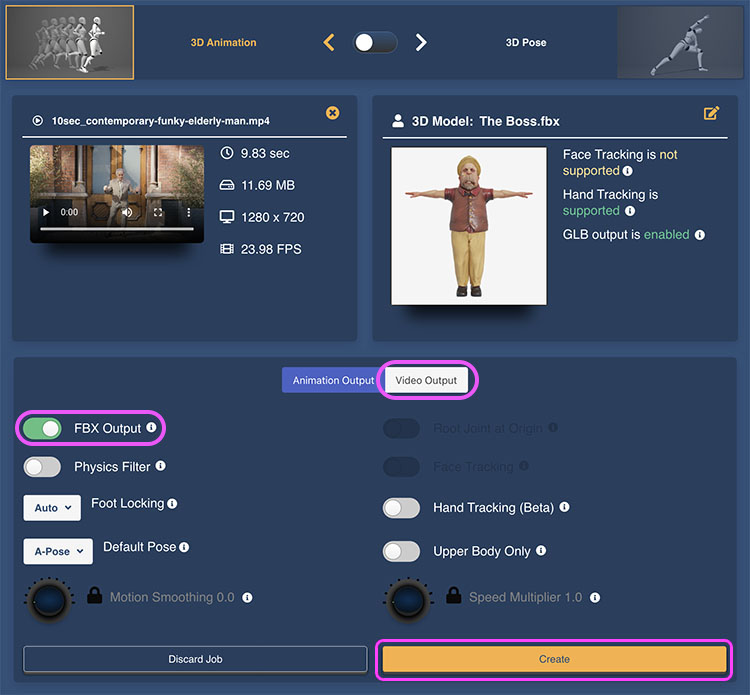
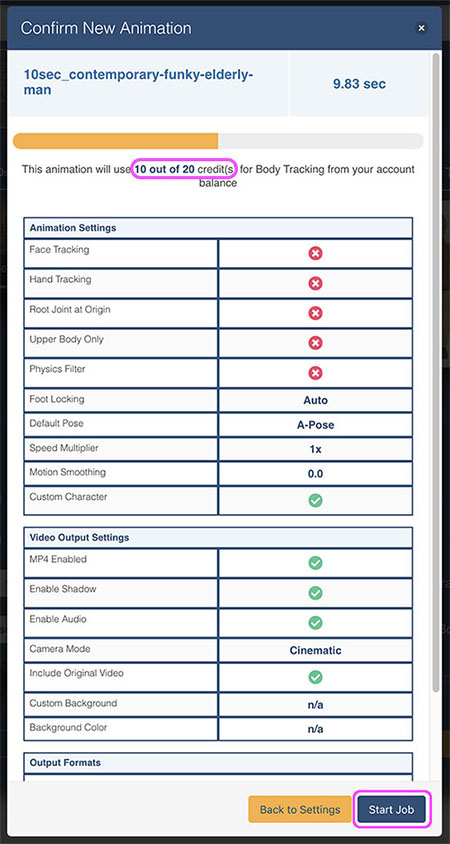
A settings confirmation window will appear. Click “Start Job” at the bottom. You can check the number of credits used and the remaining balance in the yellow status bar at the top.

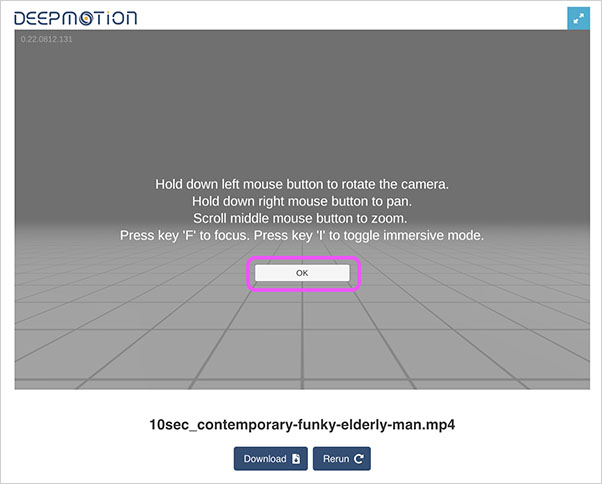
Click the OK button shown below to preview the analysis results.
8.7 Downloading FBX
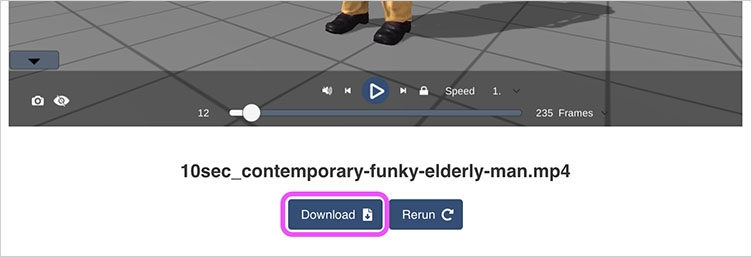
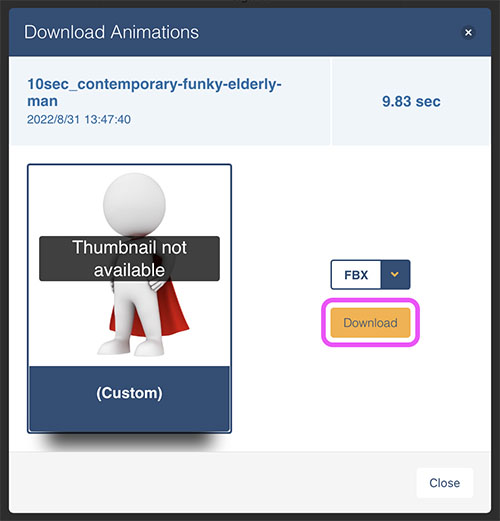
Click “Download” below the preview video.
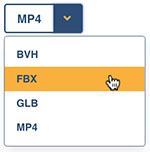
In the “Download Animations” window, you can download BVH, FBX, GLB, and MP4 (only when “Video Output” is selected) from the drop-down menu at the bottom. Here, click the “Download” button while the format is set to FBX.
Please submit your assignment as an MP4 file
When you extract the downloaded ZIP file, you’ll find two files. The file with (includeTopse) at the end of its name contains a T-pose for rigging at the 0-second mark. In this case, we’ll check the file without the T-pose in Blender.

9. Check in Blender
Launch Blender and import the file via File > Import > FBX.
- Shading: Material Preview
- View Overlays: Hide Bones
- HDRI World Opacity: 0.5
On its own, Eevee can render it in real time.
I just copied it and gave it an “Oompa-Loompa” vibe from Charlie and the Chocolate Factory.
10. Reference Sites
- GarageFarm.net - Explaining Automated Motion Capture with DeepMotion and Blender
- Zephyrnet - DeepMotion Launches Animate 3D
Official YouTube Channel
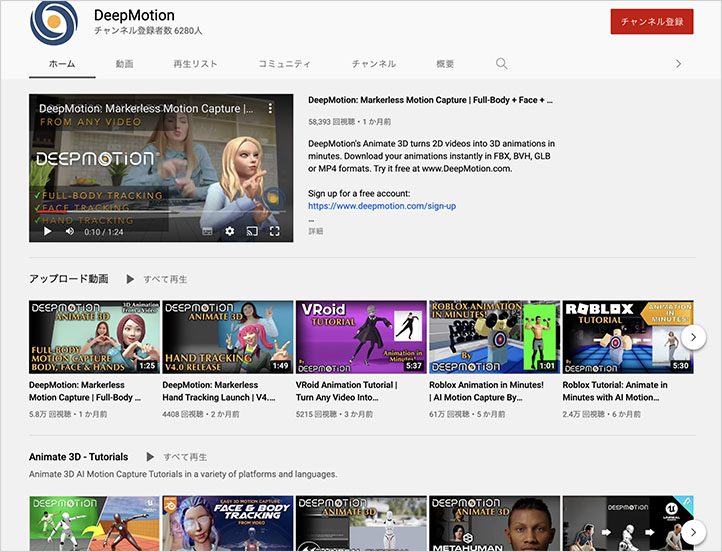
While Deepmotion is primarily a motion data analysis system, it can be integrated with various services such as Vroid, Unreal Engine, MetaHuman, and Roblox. The official YouTube channel features a wealth of examples demonstrating these applications.
https://www.youtube.com/c/DeepMotionInc